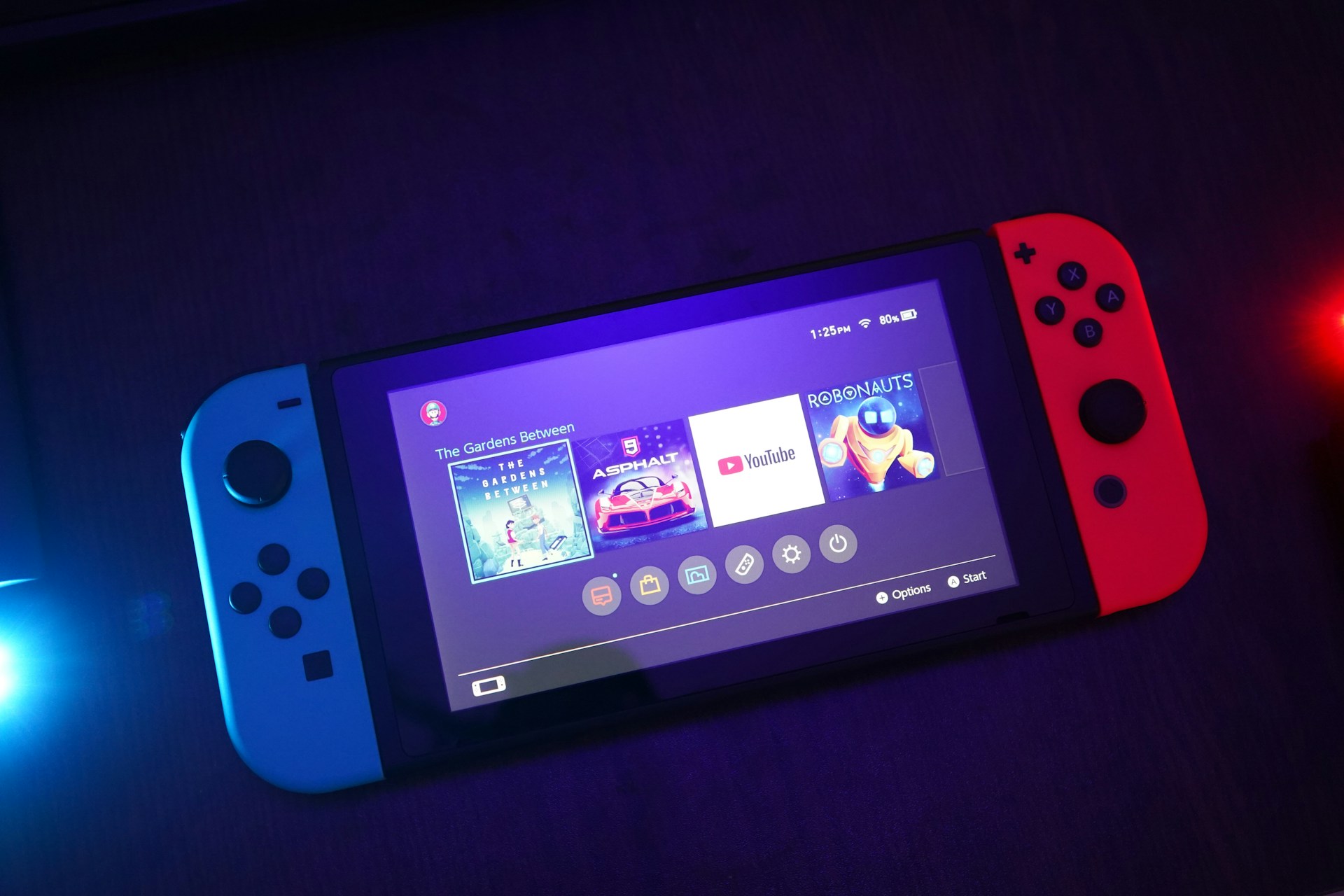
It’s always a welcome sight upgrading your Nintendo Switch.
Taking time to enjoy your new console is often one of the first things you will do, but then the questions set in. One, in particular, that can cause some stress is transferring your save data to your new console.
Fortunately, Nintendo has made it simple to get not only your save date over, but all of your information to your new console.
There are two major ways to go about this: one involving a wireless transfer and another using the cloud service if you’re subscribed to Nintendo Switch Online. You can also transfer over your user data, which includes save and software data.
In order to transfer save data between consoles, they must be registered to the same Nintendo account.
While there is a lot you can transfer over, moving over your Animal Crossing: New Horizons data is trickier and requires its own process.
Wireless Transfer Between Two Nintendo Switches

This method will work if you have both consoles in your possession and they are on the same wi-fi network. It’s important to note that this will not work if one of your consoles in on a wired Internet connection.
Through this method, you can only transfer one save data file per game, per user from one Switch family console to another. This means the consoles only need to be a Nintendo Switch, the specific type doesn’t matter.
This method will not create a copy of any save data, rather moving it from one location to another. Once this process is complete, save data on the source console will be deleted.
While you do not need a Nintendo Switch Online subscription to do this method, both consoles will need to have system version 8.0.0 or higher. The consoles will also have to be connected to the Internet and be near each other.
On your target (new) console, follow these steps:
- From the home menu, follow this path: System Settings > Data Management > Transfer Your Save Data.
- Select “Receive Save Data” and place the two consoles next to each other.
- Once complete, select OK and your data should be moved over. If the target console has save data from the same software, it will require you to “Overwrite Save Data” in order to continue.
On your source (old) console, follow these steps:
- From the home menu, follow this path: System Settings > Data Management > Transfer Your Save Data.
- Select “Send Save Data” and then select the user from which you want to send save data.
- Select the software title for the save data you will want to send over. You cannot select multiple titles so you will need to repeat this process for each title.
- Once selected, click “Send Save Data.” Upon successful transfer, the data will be deleted from the source console.
Transfer Save Data Via the Nintendo Switch Online Cloud

While neither method is overly difficult, this one is the easier option. This method will only work if you are subscribed to Nintendo Switch Online.
This method may be easier, but it’s not foolproof. There are myriad titles that are not compatible with Nintendo Switch Online, including many of the Pokémon titles, and will not transfer this way.
Before you can transfer any data over, you need to ensure it is backed up to the Cloud from the source console:
- Highlight the game you want to backup and press the plus button on your controller. This opens the software menu.
- Select “Save Cloud Data” and choose the user from which you want to back up the save data.
Now, move over to your new console and download the data:
- Follow this path from the home menu: System Settings > Data Management > Save Data Cloud
- Once here, select the data you wish to download. You can only download one software’s data at a time.
Since the Cloud acts as the hard drive for the save data, it can appear on multiple consoles. This is ideal if you plan to keep both consoles and want your progress on either console to carry over. If not, you can delete your data from your old console.
Transferring User Data From One Switch to Another

You can transfer an entire user from one console to another. Of course, you can start a new one, but if you want to keep one you established on your old console, this is the way to go.
This method allows you to transfer over all associated save data to this user as well as Nintento eShop purchases. While you can redownload all your eShop purchases, this may be the easier way, especially if everything is on one user.
Learn how to move your user profile, along with all its associated save data and Nintendo eShop purchases, from one Nintendo Switch system to another.
On your source console, follow these steps:
- On the Home Menu, select System Settings and then Users. Once a user is selected, click Transfer User Data.
- A screen will pop up that explains the user data will transfer over. Click Next to continue.
- Another screen will pop up explaining that downloadable software will no longer be available on the old console once transferred. Select Next to continue.
- Select Source Console.
- A screen will popup explaining what will transfer over. You can move forward by selecting Continue or end the process by selecting Cancel.
- That data will be ready to transfer to your new console.
On your target console, follow these steps:
- On the Home Menu, select System Settings and then Users. Once a user is selected, click Transfer User Data.
- A screen will pop up that explains the user data will transfer over. Click Next to continue.
- Another screen will pop up explaining that downloadable software will no longer be available on the old console once transferred. Select Next to continue.
- Select Target Console.
- The source console will then detect the target console. On the source console, select Transfer.
- The user data should move over to the new console.
In Conclusion

Transferring save and user data isn’t difficult regardless of your preferred method. While it may seem intuitive to use an SD card to transfer your data, there is not a great way to do this.
Once you move your SD card from one system to another, the new Switch will want to format the card, deleting any information on board.
An easy way to transfer software is redownloading it from the eShop. Nintendo keeps your purchases on file and allows you to redownload your purchases.
If you have any further questions, be sure to check out the Nintendo support page as the company has a robust amount of service articles addressing all needs.
Featured Image: Yasin Hasan (via Unsplash)
Pow Block Podcast – A Nintendo Podcast by Boss Rush
Pow Block Podcast is the Nintendo podcast for The Boss Rush Network and Boss Rush Media. Each week, Edward Varnell, Corey Dirrig, and their friends from around the internet discuss the week that was in the world of Nintendo, including news, rumors, new and upcoming games, NSO, answer listener questions, discuss their weekly snacks, and more. New episodes now release on Tuesdays for everyone.
This feed also includes Pow Block Expansion Pass, a weekly extra dose of Nintendo. Get each episode of this show two weeks early on Patreon.
Email the Show: nintendopowblock@gmail.com
Listen to Nintendo Pow Block:
Anchor | Apple Podcasts | Spotify | YouTube
Follow and Connect:
X (Formerly Twitter) | Instagram | Threads | Facebook | LinkedIn

Leave a Reply